by Alan Zisman (c) 1997
6 April, 1997[Go to Win95
Networking FAQ] [Go to About Alan]
The Problem:
While computers on networks may have been set up to limit the ability
of users to mess with the system, this is not the case for most
standalone computers.
Many users have learned tricks to make their Windows
3.1 setups relatively secure. Windows 95 requires a whole new set of
tricks-- the old Win31 tricks (such as editing Progman.ini) no longer
work. While Win95 enables user logon, by default, this is completely
unsecure, and even without a password, a user can enter the system,
simply be pressing the ESC key at the logon prompt, opening the DEFAULT
user profile.
The Tools:
There are a number of 3rd party programs promising to secure Win95
systems, such as Symantec's For Your EyesOnly (about $100) or
the shareware WinU ($29.95 www.bardon.com).
Using software included with Win95, however, a standalone system can be
made reasonably secure.
Win95 includes an option called User Profiles.
When this is enabled, different users can have different desktops and
different contents in their Start Menus. As well, an optional program
called Poledit (or the 'Policy Editor') lets a wide range of
options be set for each user profile. You can find Poledit on
your Windows 95 CD-ROM, in the \ADMIN\APPTOOLS\POLEDIT folder.
Copy the contents of that folder onto a floppy diskette.
The Trick:
We will create several different user profiles-- for example, a Guest
profile, and an Administrator one, requiring a password. Then
we
will remove features from the default profile, so that even if a user
presses ESC at log-in, they will only have the minimal set of
options-- only someone knowing the Administrator password will have
full access.
Step 0: Back up the Registry prior to making changes.
Open Explorer and look in your C:\Windows folder. In order to
see the hidden Registry data files, you may need to go to the View
menu, choose the Options submenu, then the View tab of
the dialogue box. Select the Show all Files option.
Look in the C:\Windows folder for the files User.datandSystem.dat.
Copy those files to another location... perhaps C:\
Step 1: Enable User Profiles
| From the Start Menu,
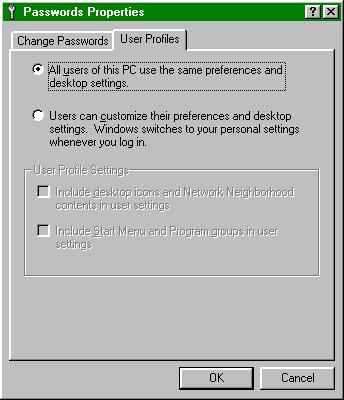
choose Settings, and then Control Panel. Double-click on the Passwords
icon. Click on the User Profiles tab, and select the second
choice:
(x) Users can customize their preferences
and desktop settings...
Then select both options for that choice:
(x) Include desktop icons...
(x) Include Start Menu and Program Groups...
From the Start Menu's Shutdown option, choose Restart.
|
 |
Step 2: Log on as 'Guest'...
leave the password field empty.
- Edit the Start Menu to remove unwanted and
dangerous items.
Right-click on the Start button, and
choose Open from the popup menu.
Double-click on the Programs icon, then on the
Accessories
icon, then click once on the System Tools icon, to select it.
Press delete or drag it to the Recycle Bin, removing these
items from the Start Menu.
Similarly, remove any other icons that you don't want
your guests to have access to.
If you have any programs that you want guests to get
easy access to, right-drag the icons to the desktop, and choose Copy
from the popup menu, when you release the mouse button.
-- either leave the icons on the desktop, or drag them
onto the Start button, for quick access.
Similarly, you can copy icons to the Startup
folder for automatic startup.
- Run Poledit, to further restrict Guest access.
(You'll find a copy of POLEDIT.EXE on the
WIN95 CD in the \ADMIN\APPTOOLS\POLEDIT subdirectory... don't
copy it onto your hard drive; copy it onto a floppy)!
From the Start Menu's Run option, type:
A:\POLEDIT\POLEDIT
From the File menu, select Open Registry;
click on the Local User icon, then choose Edit then Properties
from the menu.
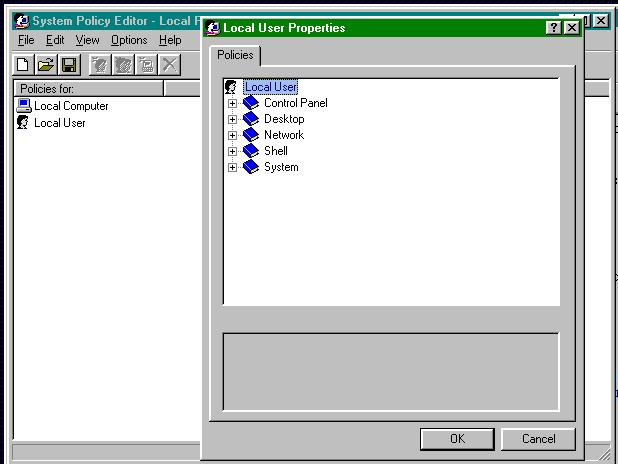
Click on the + signs next to the book icons to
open each item, and see its options... For example, open up the Control
Panel
item and view the Display books. Click on the grey square next
to
the words: Restrict Display Control Panel. This will display a
series of possible restrictions for this item. The first one, Disable
Display Control Panel is the most powerful-- checking that will
prevent users from making changes to screen colours, wallpaper, screen
savers, and other display features. (Make sure you've set these
features the way you want them before disabling them!)
Repeat this process for other items... I'd suggest the
following:
|
Control Panel
|
|
Shell
|
|
| Display |
[x] Disable Display Control Panel |
Restrictions |
Remove Run command |
| Network |
[x] Disable Network Control Panel (if on a
network) |
|
Remove folders from Settings |
| Passwords |
[x] Disable Passwords Control Panel |
|
Remove Taskbar from Settings |
| Printers |
[x} Disable Deletion of Printers |
|
Hide Network Neighborhood (if not on
network) |
| System |
[x] Hide all four options |
|
Don't save settings at exit |
|
Desktop
|
|
System
|
|
| Wallpaper |
choose one (if desired) |
Restrictions |
Disable Registry editing tools |
| Color Scheme |
choose one |
|
Disable MS-DOS prompt |
|
Network
|
|
|
Disable single-mode MS-DOS applications (if
none are needed) |
| Sharing |
disable both items if on a network |
|
|
Click Okay. Close Poledit... you'll be prompted to Save
Changes to the Registry. Choose Yes.
Step 3: Reboot, and log on again as 'Guest' with no
password.
Notice how you get the wallpaper and colour scheme you chose in Poledit,
and that the icons you deleted do not appear in the Start Menu. If you
right-click on the Desktop, and choose Properties from the
popup
menu, you'll get a notice that the system adminstrator has
disabled this function. Similarly, the other restrictions that
you selected will now be in effect, whenever you log on as Guest.
If you want to change these restrictions, log on as Guest,
and repeat Step 2, making
any desired changes.
Step 4: Log on as 'Administrator', selecting a
password.
Write your password down, and keep it in your
wallet (not in your desk!)... if you forget your password, you will
have a big problem, and will probably have to format your hard drive,
and reinstall Win95 and all your software.
-- Notice that you have all your icons back, and that
you can right-click on your Desktop, choose Properties
from the popup menu, and make any changes you want. The Guest restrictions
do not apply under this different user profile.
Step 5: Log on again, but press ESC rather than
entering a name or password.
This will get you to the default profile, which is also what
anyone would get if they logged on with a new name or pressed ESC.
Repeat all the changes that you made under the Guestprofile
(Step 2). Again, save these
changes to the Registry when you quit Poledit.
If you want to be really nasty, you
could remove everything from the Start
Menu/Programs list for the default profile, and create
wallpaper with a message suggesting that they log on properly!
Step 6: Check your changes...
Log on as a new user; you should get all the restrictions of the default
profile. Try to cheat the log-in procedure by pressing Esc...
again, you should get the restricted default profile.
Afterwards:
If you want to undo this, log onto the default profile (by pressing Esc
at log-in), run Poledit, and remove all those restrictions.
(You
can restore the Start Menu items by copying the contents of
\Windows\Profiles\Administrator\Start Menu to \Windows\Start Menu).
Note that if you removed the ability to run
Regedit from the Default profile, you'll be unable to run Poledit as
well-- you will not be able to easily restore this system! Try copying
your original, backed up versions of User.dat and System.dat (the
Registry files!)
Then, restart Win95, again log onto the default
profile, and open Control Panel. From the Passwords
icon,
go to the User Profiles tab, and choose the All users of
this PC use the same preferences and desktop settings.
If you want, if you've removed User Profiles
clean up your hard drive by deleting the C:\Windows\Profiles
folder.
Aside: Another way to do the same thing...
You can also make and save User Profile changes using PolEdit's
Policy
File feature (*.POL). This, along with other User Profile issues,
is documented in the Win95 Resource Kit, which is available as a $50
printed book, but is also available in Windows Help File format on the
Win95 CD-ROM... look for Win95RK.HLP, and search the Help file for USER
PROFILES.
A step-by-step article detailing the use of POLICY files
to secure a standalone computer was published in the JULY 1996
edition of PC Magazine, in the User-to-User column.
[Go to Win95 Networking FAQ] [Go to About Alan]