|
Getting Easy
Access to
International Key Characters
by Alan
Zisman (c) 2001
|
new: Polish translation: https://odealo.com/page/miedzynarodowe-znaki-na-klawiaturze
Ukrainian: http://eustudiesweb.com/getting-easy-access-to-international-key-characters/
Macedonian: http://sciencevobe.com/2016/10/05/getting-easy-access-to-international-key-characters/
Russian: http://sci-tech-blog.com/?p=141
Albanian - courtesy of Radka Maric: http://radkamaric.com/blog/kryesore-zisman/
Portuguese: https://www.homeyou.com/~edu/personagens-chave-internacionais
Spanish: http://expereb.com/introduccion-a-los-telefonos-y-tablets-android/
Georgian courtesy of Grab My Essay
Vietnamese courtesy of Top Essay Writing
Latvian and Lithuanian by Sophia Yuzyna
new: 2016 and some things have changed and some things haven't - take a look at: Windows 10 doesn't make it straightforward to use international characters but....
Many
English-language users have need for easy access to accented and other
non-English characters. While this can be done by learning a small
number of Alt+0xxx kecode combinations, or using the Windows Charmap
accessory, many Windows users may find it useful to install and learn
to
use the Windows US International Keyboard setup.
Install the
United States (International) keyboard
Open Control
Panel, and go to the Keyboard icon. Click
on theLanguage
tab. Double-click on the English (United States)
item (or, with
that item selected, click on the Properties
button). From the
drop-down list, choose United States- International.
Click OK.
(You may
need to have your Windows CD handy as some files will be installed).
Using the
International keyboard
At first
glance, your keyboard will seem normal. However, you may notice that
several keys don't seem to do anything... however, if you press one of
those keys followed by some letters, interesting things happen:
- Circumflex
(the ^ character)... with the International keyboard, holding down
shift+6 (which gives the circumflex), followed by the letters a or e
produces that vowel with a circumflex.
- Accent
Grave is produced by typing the single quotation
mark ( ' )
followed by a letter a, e etc... the result is an accented vowel.
- Tilde--this
key (usually next to the number 1-- note you need to hold down shift)
followed by an a or an n produces that character with a tilde on top.
- Acute
Accent is produced using the apostrophe (the unshifted
character
underneath the tilde-- not the single quotation
mark) followed
by
an a, e, or i.
- Umlaut:use
the double quotation mark ( " ) followed by an a, e, i, etc. to produce
those two little dots over the letter. (Thanks to Adrienee Mahafey for
telling me the name of the two dots, also known as a "diaeresis").
Note that you
will only get the special character if you type the key combination for
a letter which can use one of those characters... if you type a
contraction like isn't for example, you won't end
up with an
accent grave over the letter t.
But what if
you actually want to get the character on the key-- single or double
quotation marks, for example? To do so, press the key followed by the
space bar. This can be a bit of a pain when putting a phrase in quotes.
Another
way...
Alternatively,
holding down the right-Alt key on your keyboard or Ctrl + Alt
at
the same time, along with many of the letters of the keyboard, and you
will get an alternative (often accented) character as shown in the
following illustration. (Illustration scanned from Windows 95
Secrets
by Brian Livingston and David Straub (1995, IDG Books, p. 501) 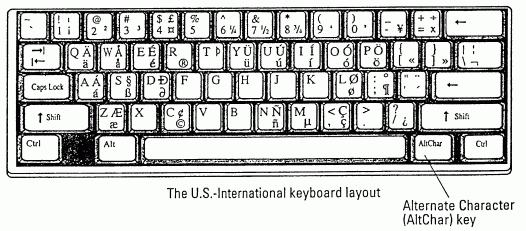
A useful page on entering Accents and International Key Characters in
both Mac and Windows can be found at: http://lrcnt.fas.harvard.edu/Resources/Documentation/accents.htm
Comment (July 2011):
The release of Apple's Mac OSX 10.7 Lion makes it easy to add
international characters on the Mac. (See this article). It notes:
"Windows is messy and inconsistent when you want to enter accented
characters. "You can choose the United States-International" keyboard
layout in the Keyboard applet in the Windows Control Panel, which
enables you (for example) to press the quotation mark key, then an "u"
to get an u-umlaut. Of course, this is different from the method built
into Microsoft Word (with any keyboard), in which you press Ctrl-double
quotation mark, then "u" to get u-umlaut. The best system for inserting
accented characters in Windows is the open-source AllChars program, available from http://sourceforge.net/projects/allchars/,
which uses the right Ctrl-key, followed by an intuitive pair of
characters, to create accented characters system-wide. Or you could
just buy a Mac."
|
|
|
|
Alan
Zisman is a Vancouver
educator, writer, and computer specialist. He can be reached at E-mail Alan
|
|